Hi Subscribers, this page might appear to be quite long/lengthy.However, you do not have to read it all at once. I really wanted to provide as much information as possible, so that the users can get an adequate idea of what the system is all about from a single location.
During the development of the program, many changes were made both in its design and appearance. As a result of the useful parts of every stage, I have decided to have both versions of the project active and available for usage. The users will decide, which version they would use based upon their style and comfort.
Both versions will be complete and fully functioning so users can alternate their usage, or stick to the single one that they are most comfortable with. My goal is to make sure that every user feels comfortable in their individual situation.
The supplied images below, will provide information for both versions of the program, so every preference will be well represented. Do enjoy your reading.
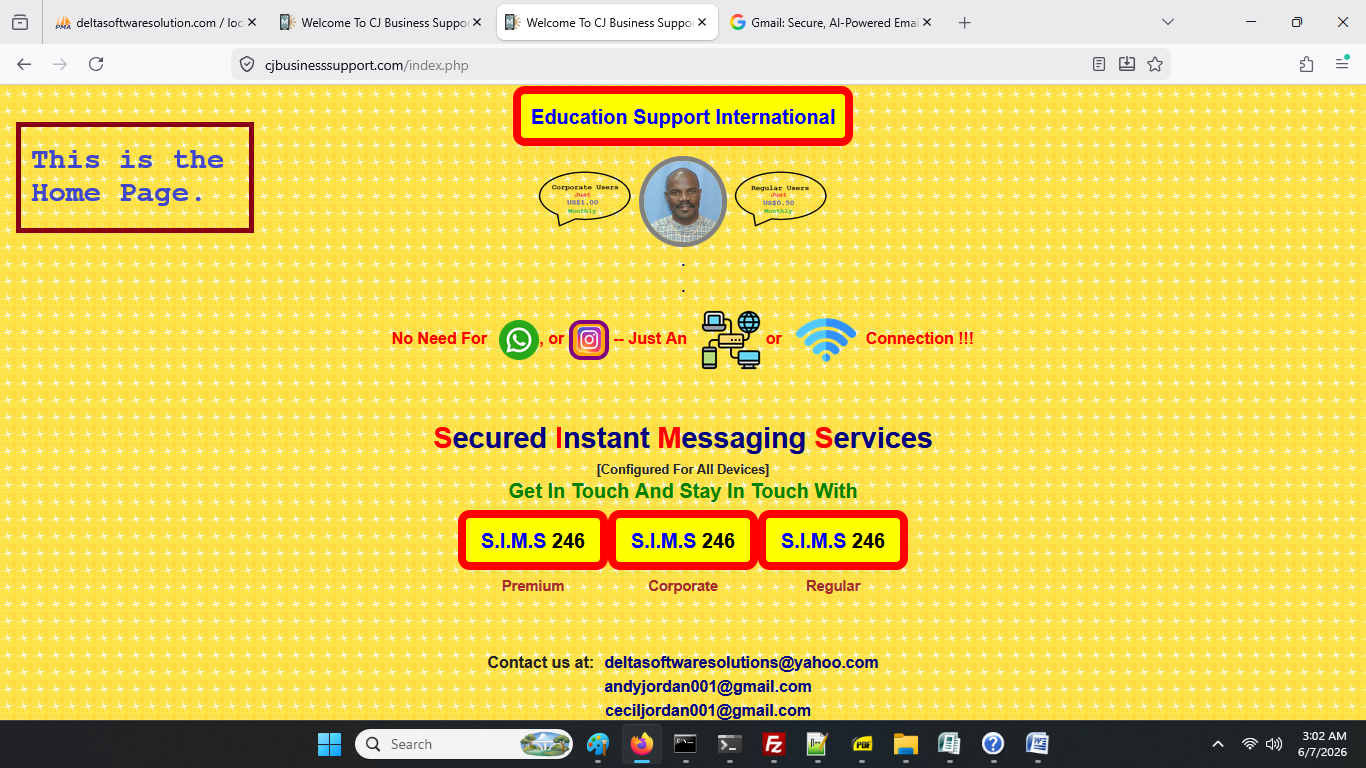
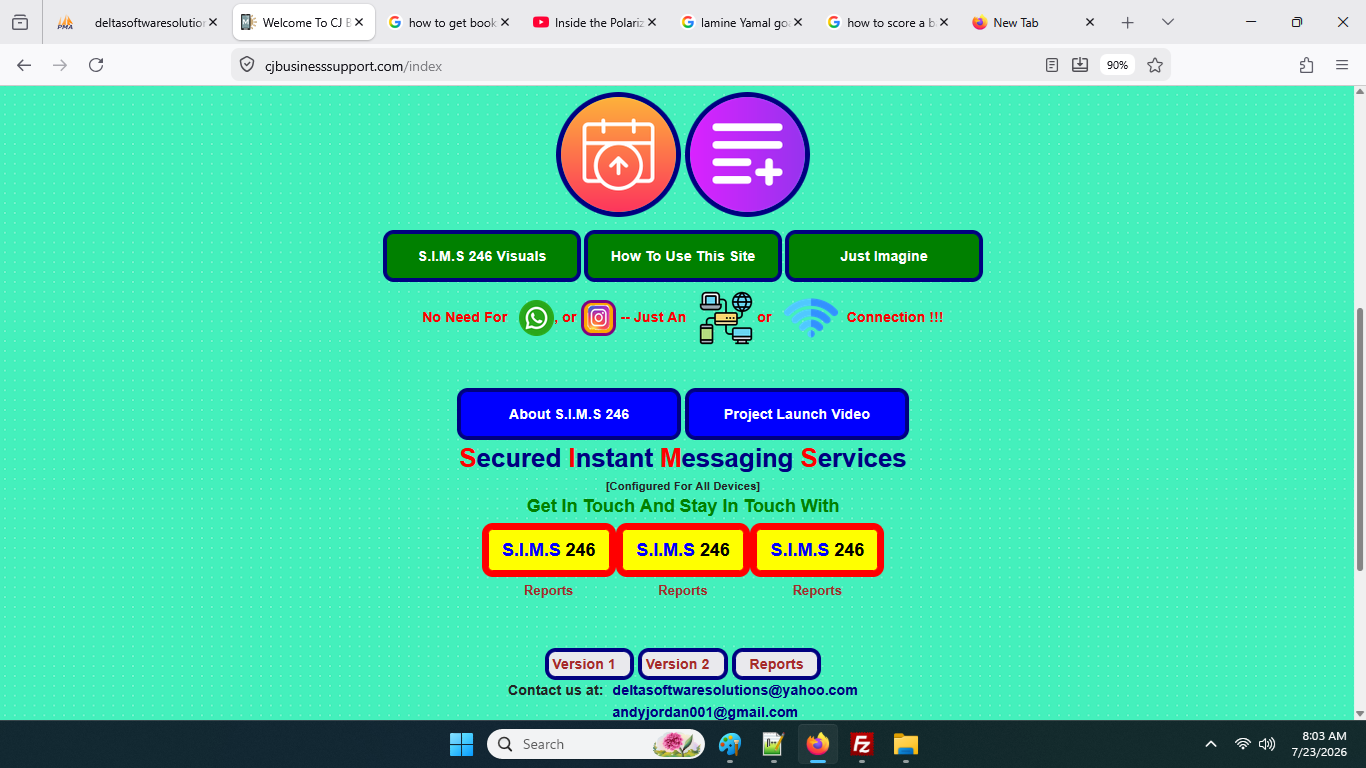
Above is the home or landing page. This page displays particular facts about the program, which of informational importance to the user. It also seeks to present to the user a page that is pleasing to the viewer as well as functionally configured to support the intent of the project.
You may notice that the background of this home page image, may vary from the one currently in use. This is so because of the varied adjustments done to come up with the most pleasing design. However, the functionality remains the same.
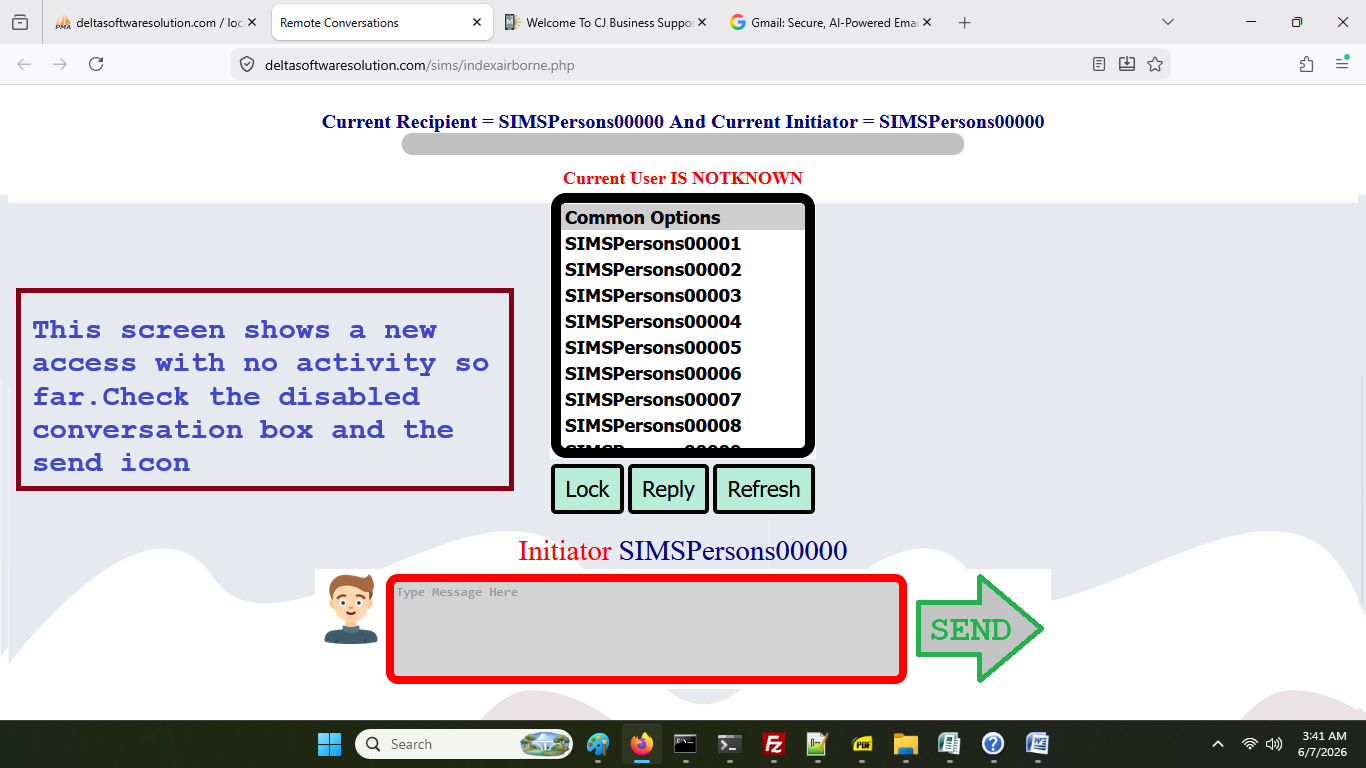
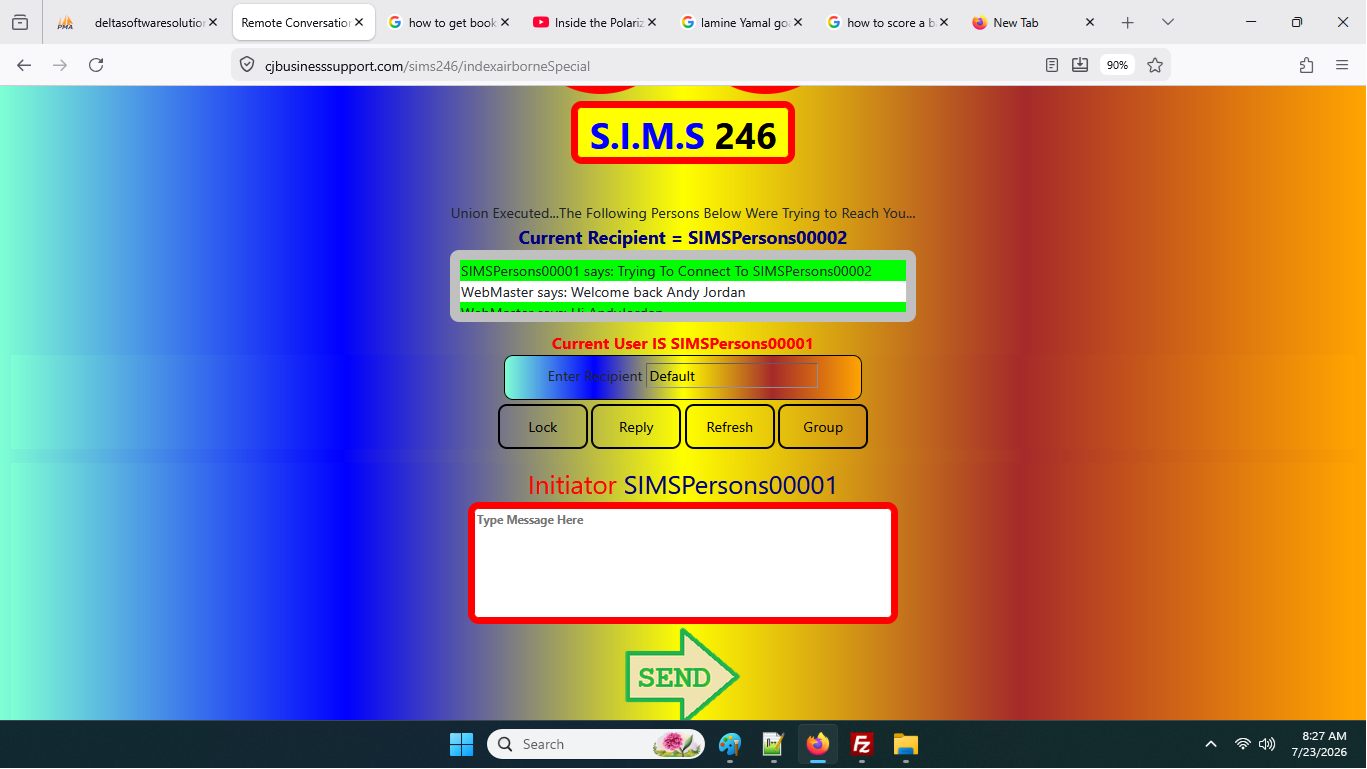
When the user selects a category of SIMS246 to execute, they will be directed to a page which appears similar to the above image. But take note that at present there has be a new version of the program. However, both versions of the program remain accessible so that the user choose which suits his/her style of manoeuvring.
The options list boxes approach represent Version 1 of the program and is geared at allowing those users who wish to select users from a pick list. This approach allows the user to easily scroll through available names and select the one which is required.
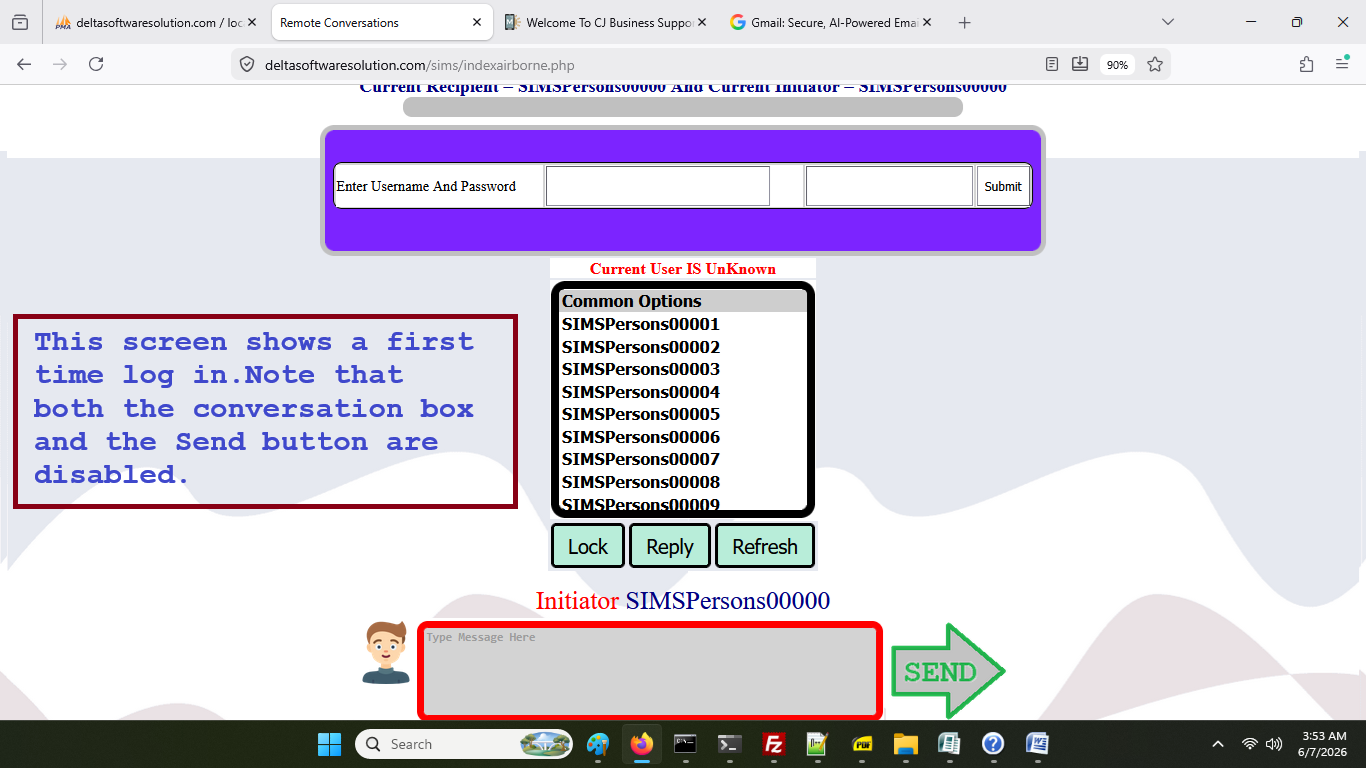
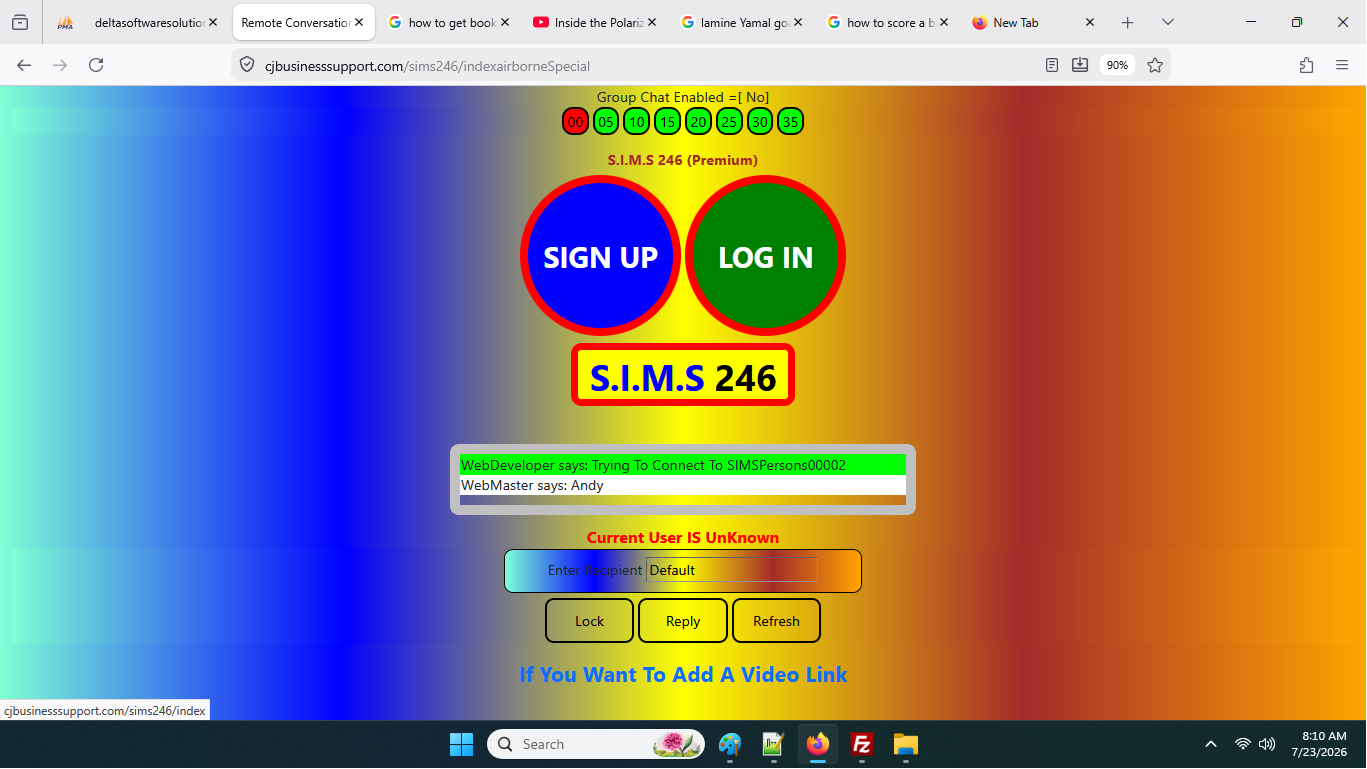
In order to use the program, the user must first log on to the system. This is done by the user, clicking on the circular button labelled [LOG IN]. When the user performs this action, the above screen will appear. The user will then enter their username ans password and click the [Submit] button. On clicking the button, the system will verify the data entered and if everything goes well, the username will appear above the [Common] list box.
At this point now, the user is ready to create a chat session if so desired.
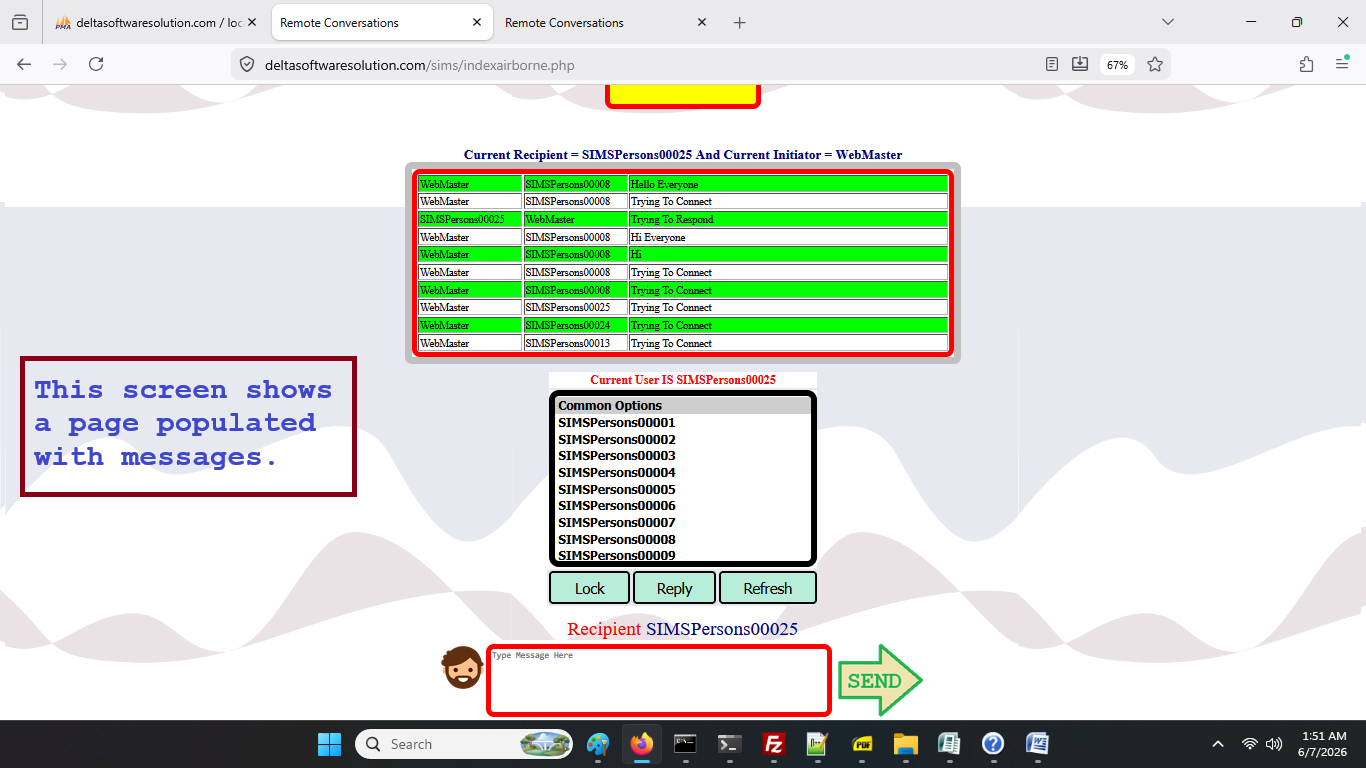
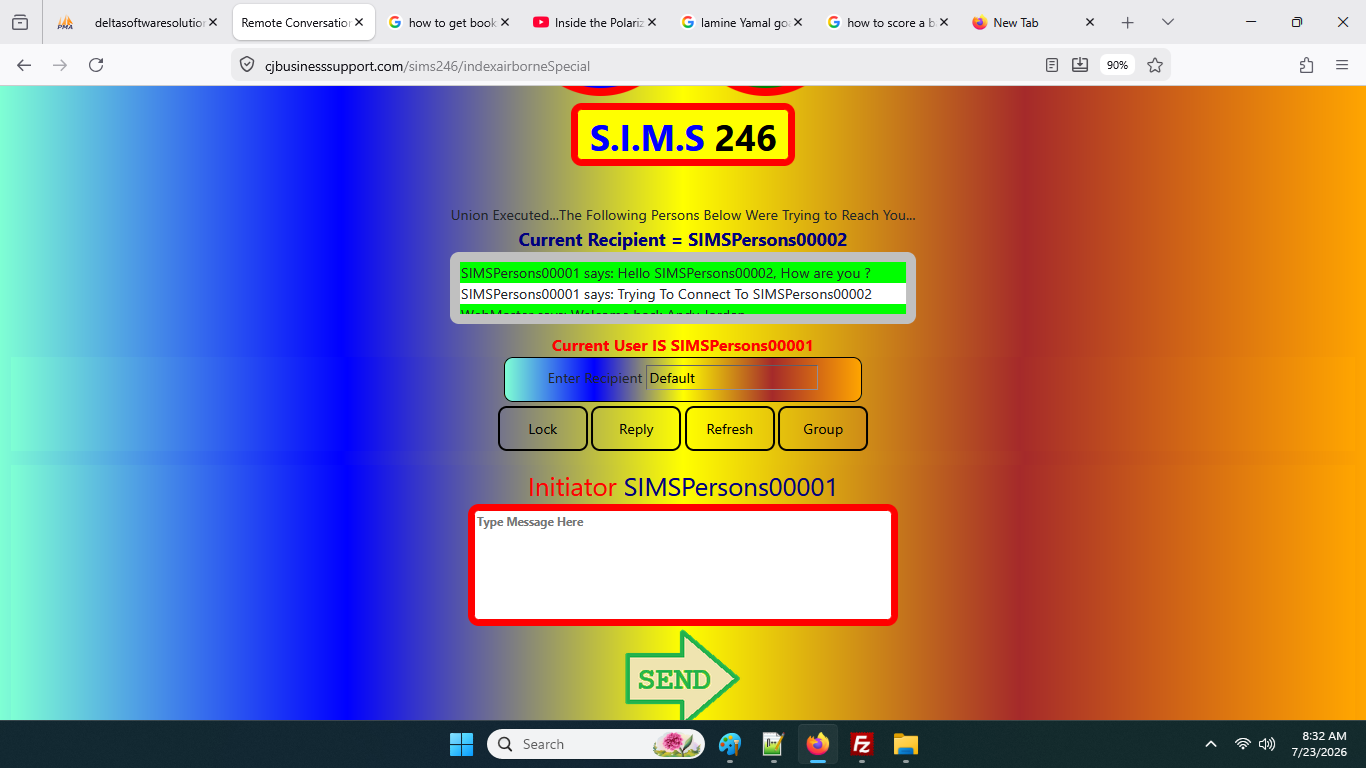
The above screen depicts the level of activity that obtained, when a user has logged in and is currently messaging. The messages appear in the conversation box, ordered by the most recent message.
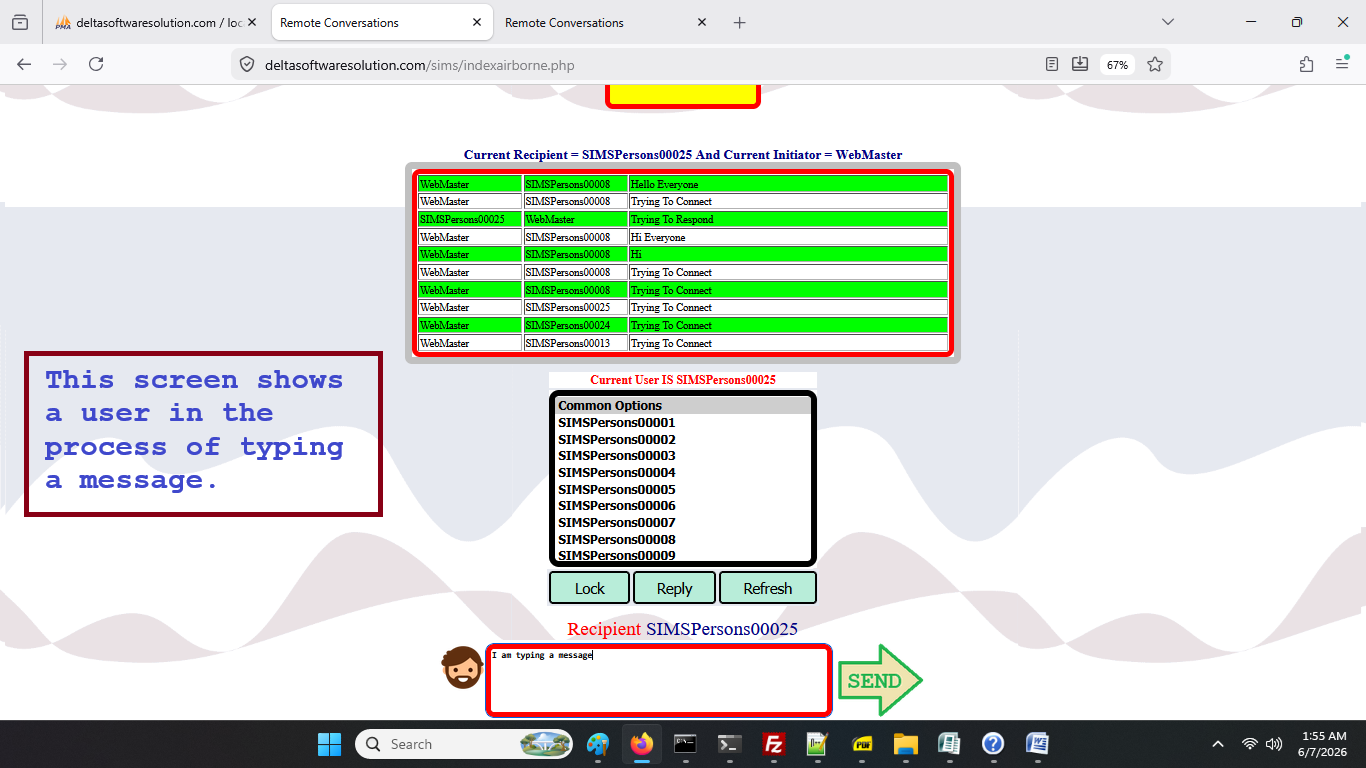
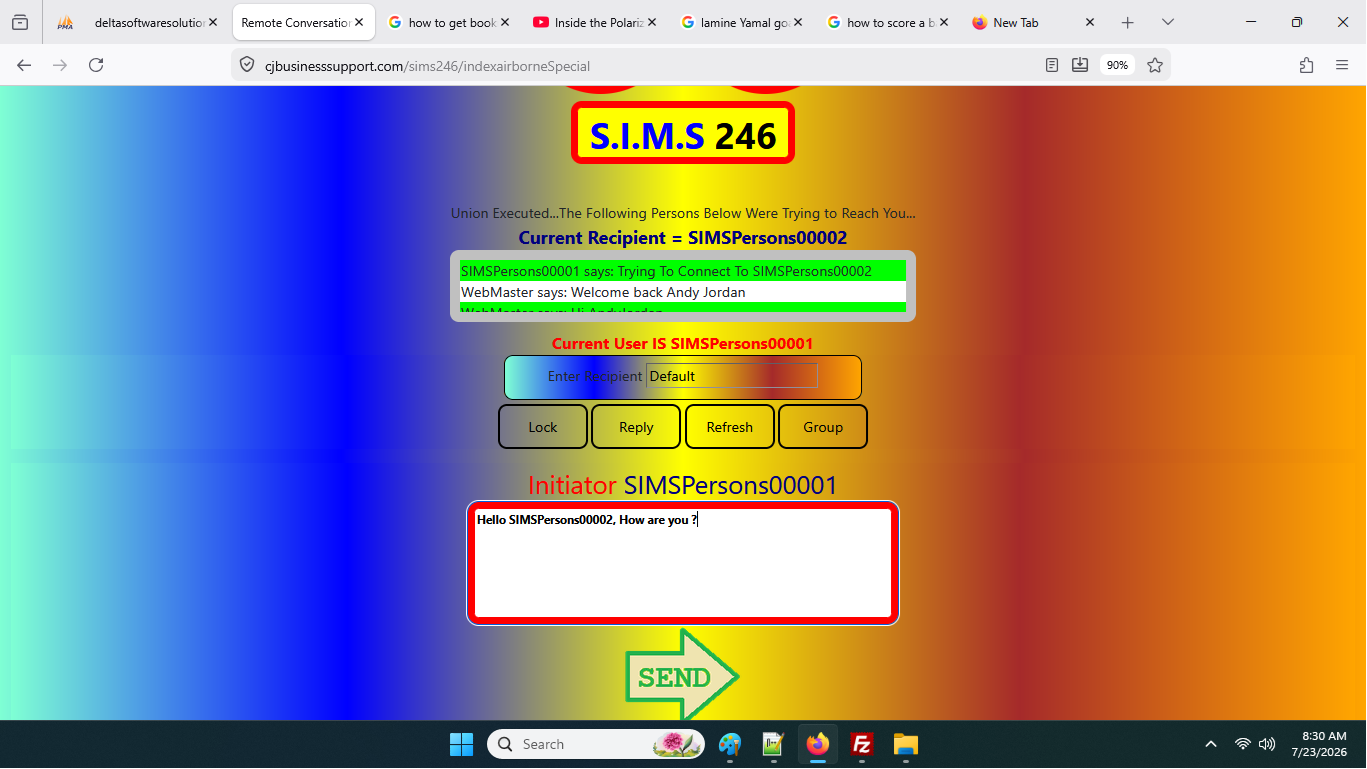
The above image shows a user actually typing a message.When the user is finished, he/she will click the [SEND] arrow icon to complete the message. Once clicked, the message will be sent and will appear in the feed of the sender as well as the receiver. The users browser has been configured to refresh at the lowest rated of every 35 seconds. The user can also set the refresh rate, through the program from 5 seconds to 35 seconds.
The user can also use the option, also provided by the program to stop the browser from refreshing, in positions where the speed of refresh interferes with the users ability to complete typing effectively.
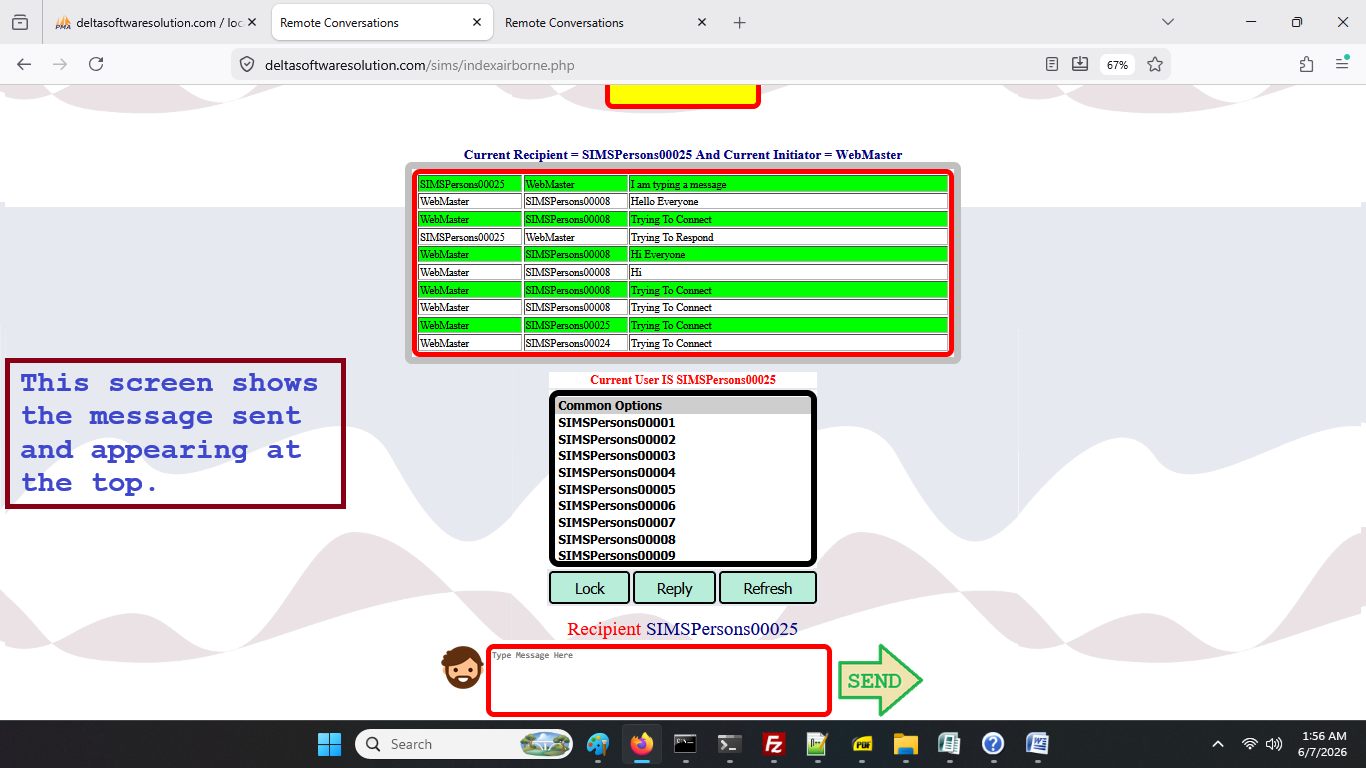
The above is the image of the results of the user having created a message or messages.
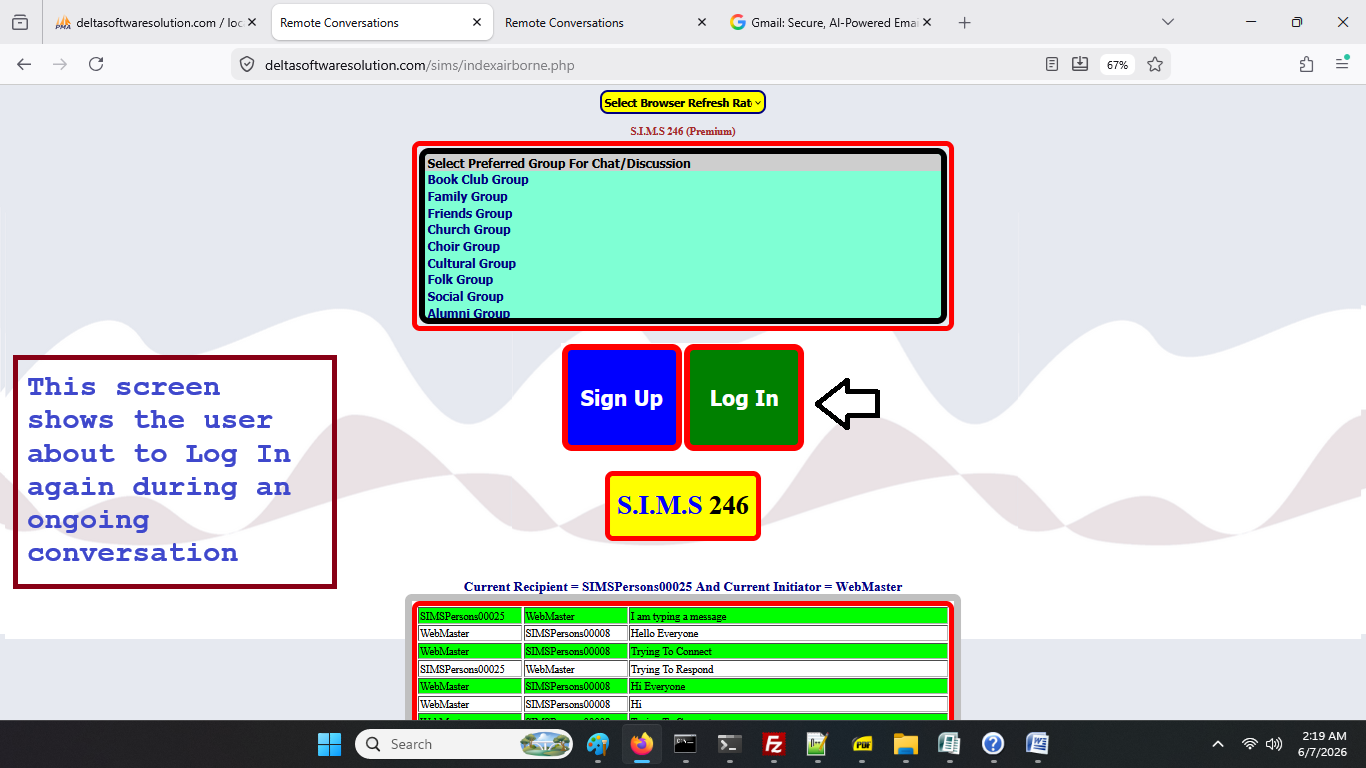
The program whilst allowing the user to engage in continuous conversations also allows the user to log off and create a new connection, during an active conversation. Moreover, the user can log off as a final action, or log off to attend to another matter. But having logged off an active conversation, the user can return to the immediately previous conversation by virtue of just logging on with the same credentials that was used to first create the connection.
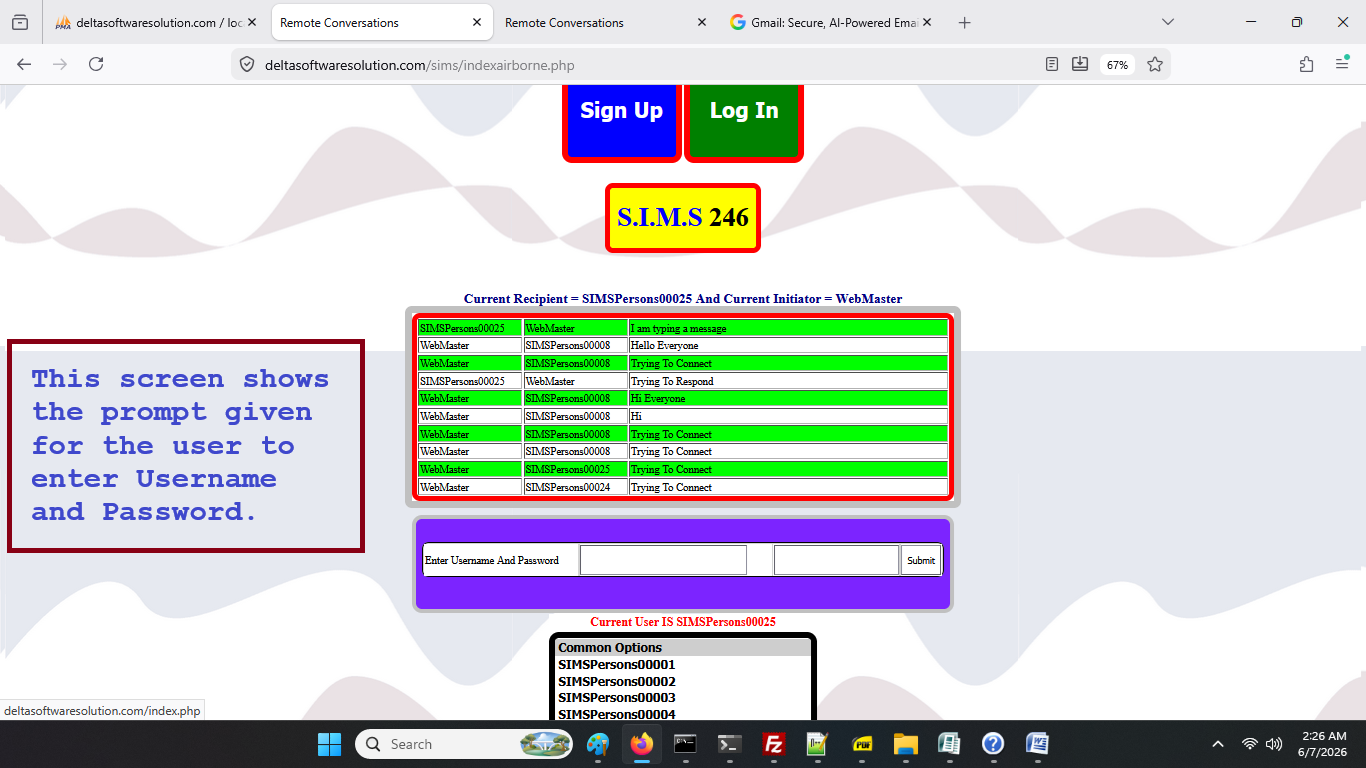
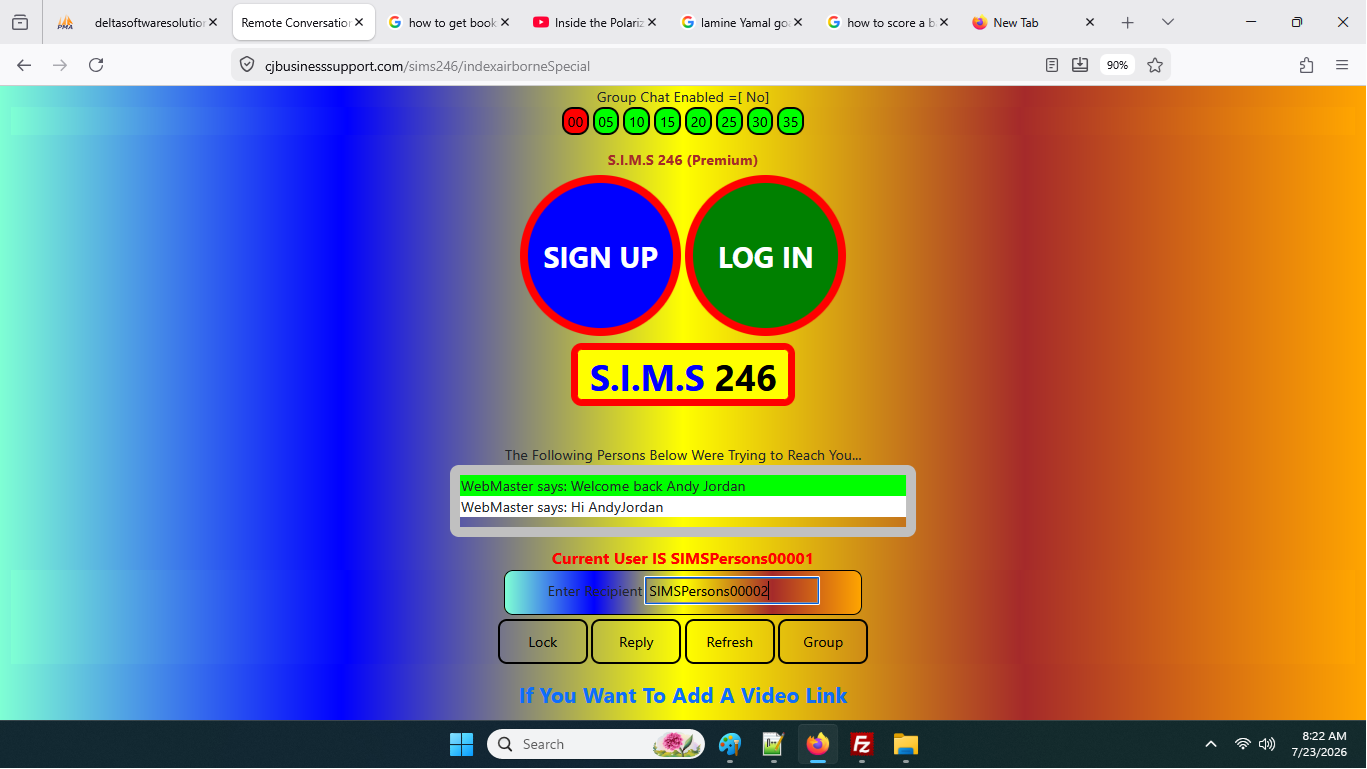
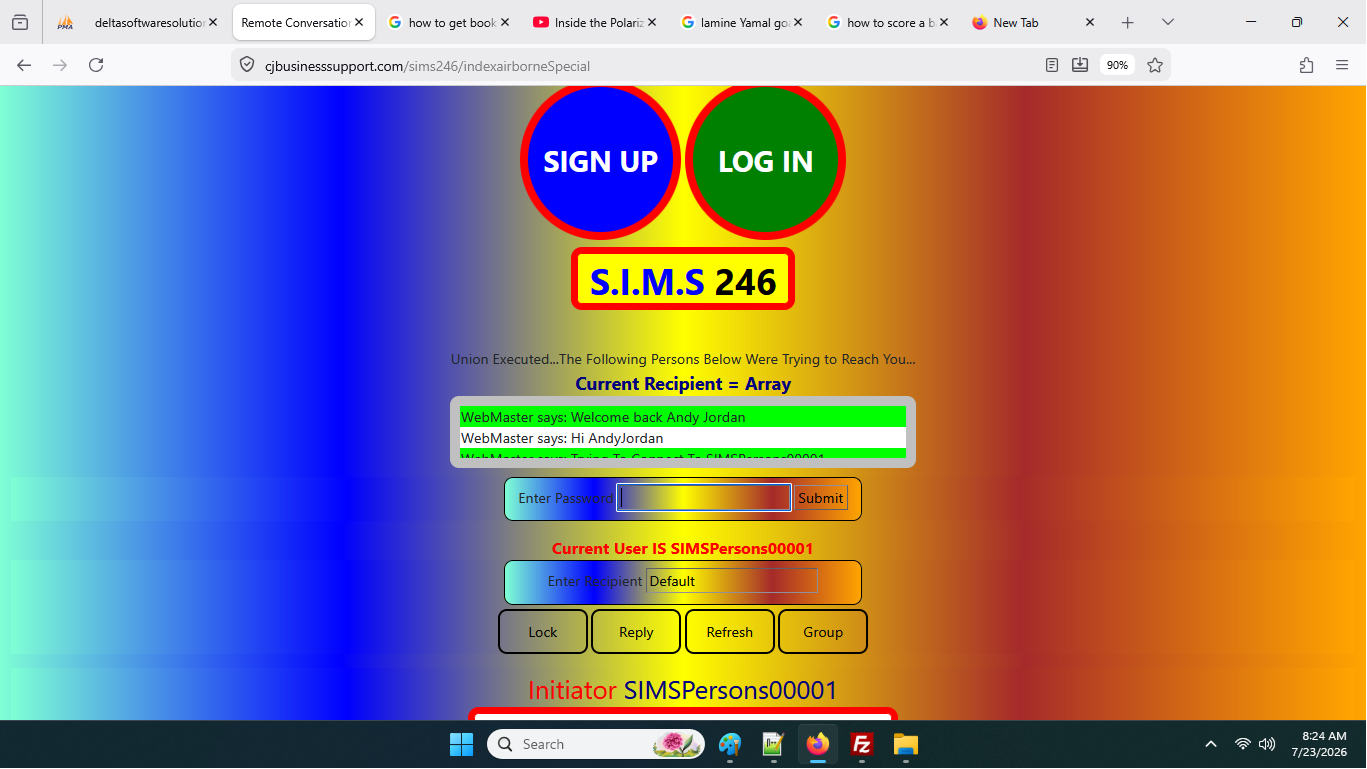
Having taken that decision to log off/on, the user will be prompted to enter their password. A succesful entry of the correct password, will see the username appear and indicating as current user. At this point, the user will be free to pursue his/her action.
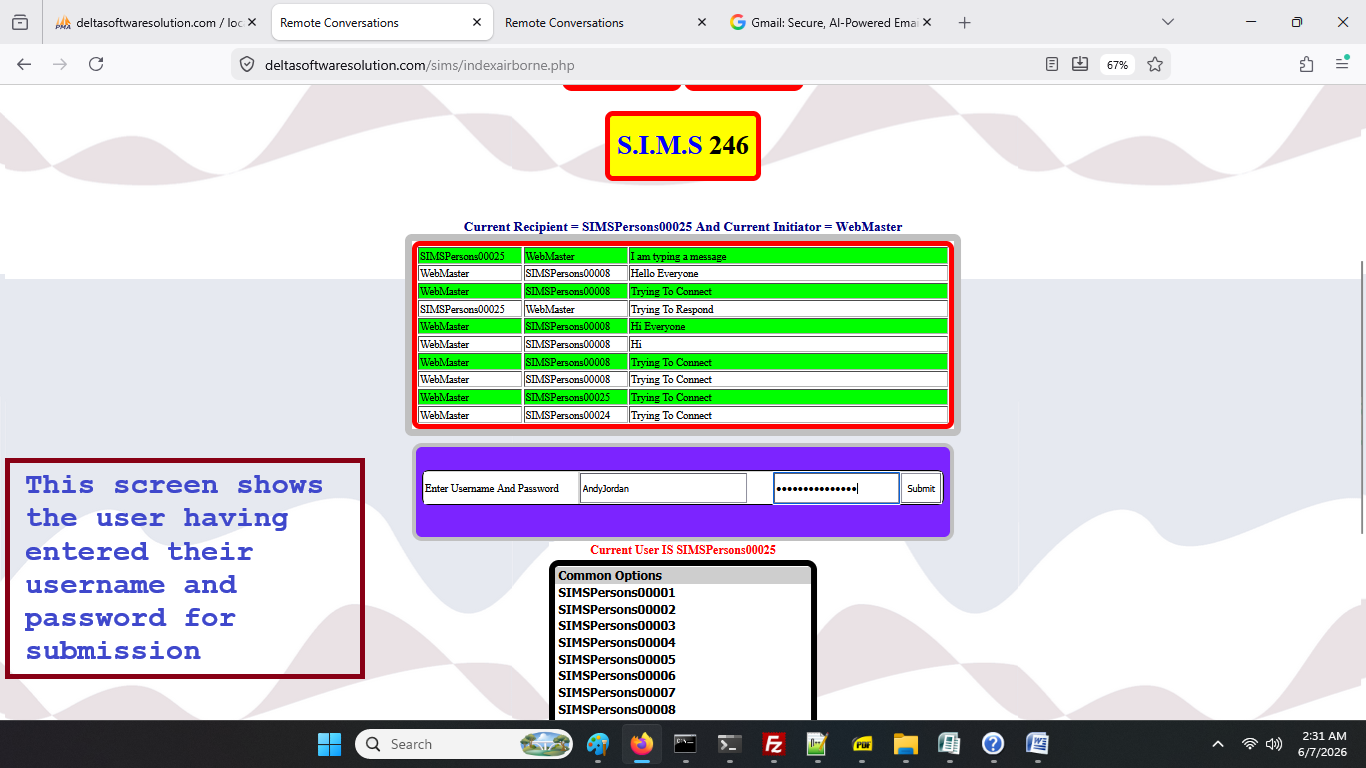
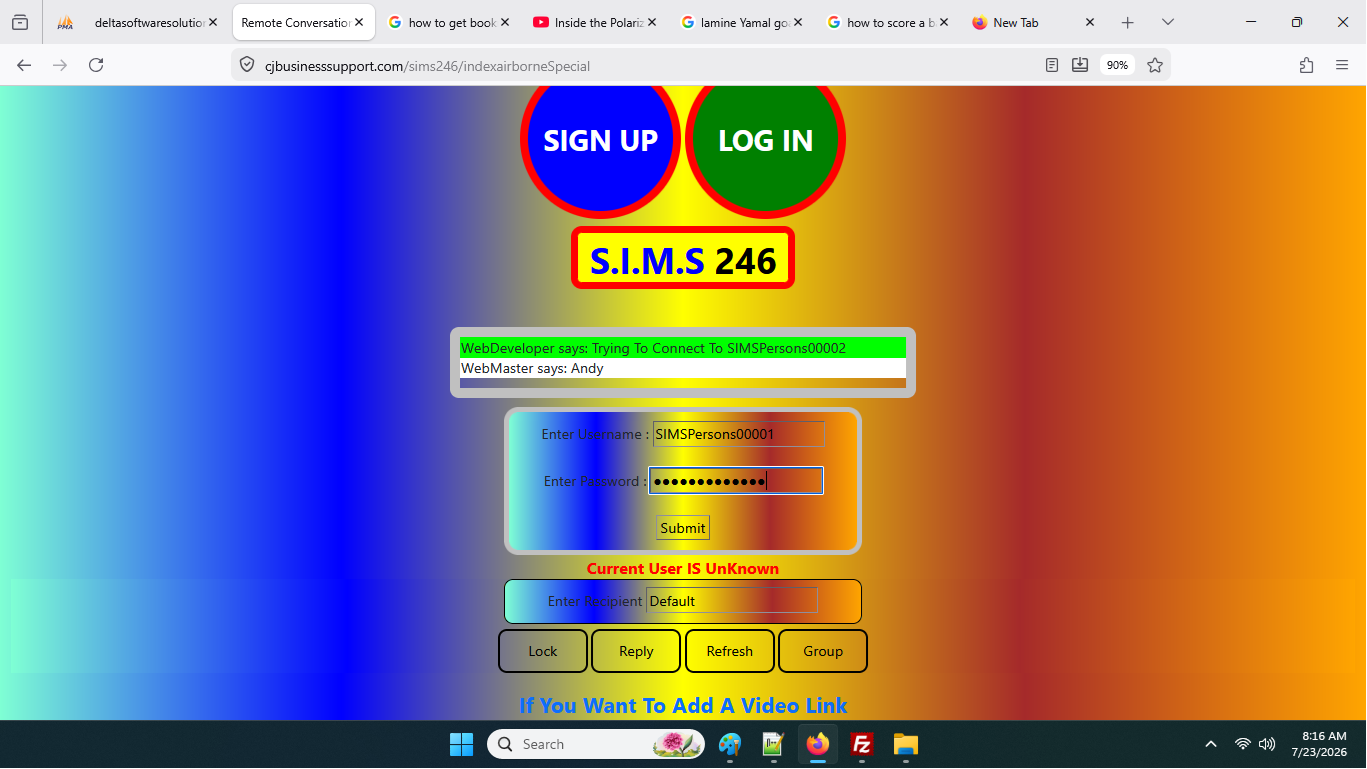
The above image shows an active screen where the user has entered his or her username and password and is at the point of submitting. This image serves to show any intended user/subscriber what to expect when this particular activity is requested or is being experienced.
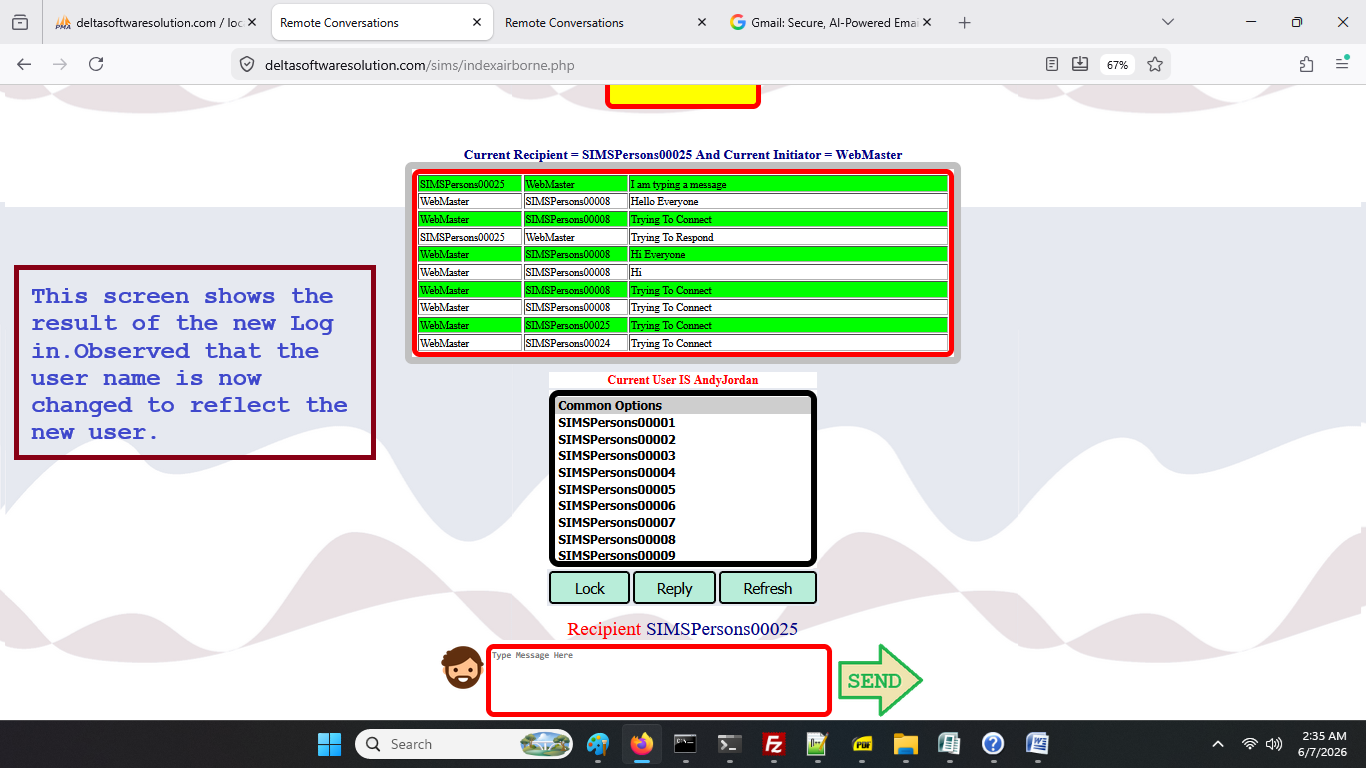
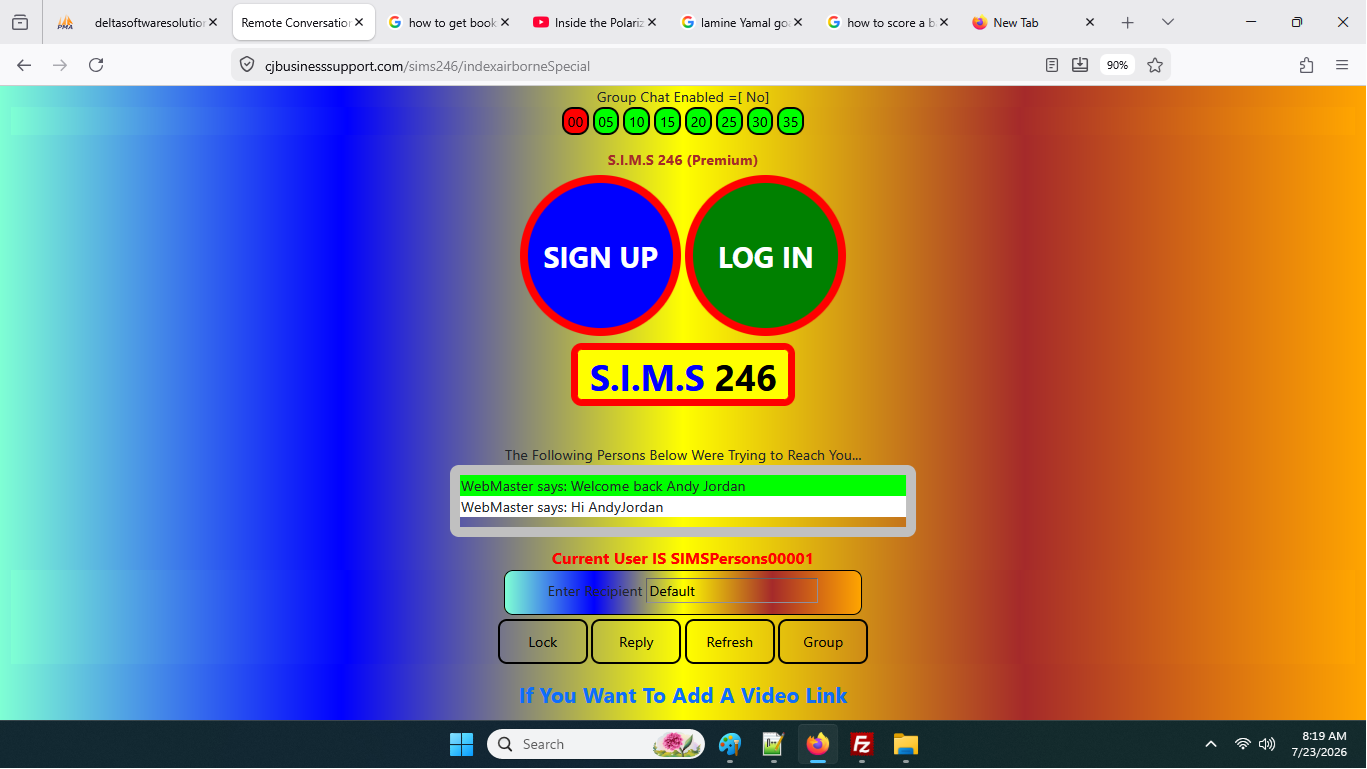
The image above shows the result of a successful verification of the username and password. The information associated with the user and recipient are displayed.
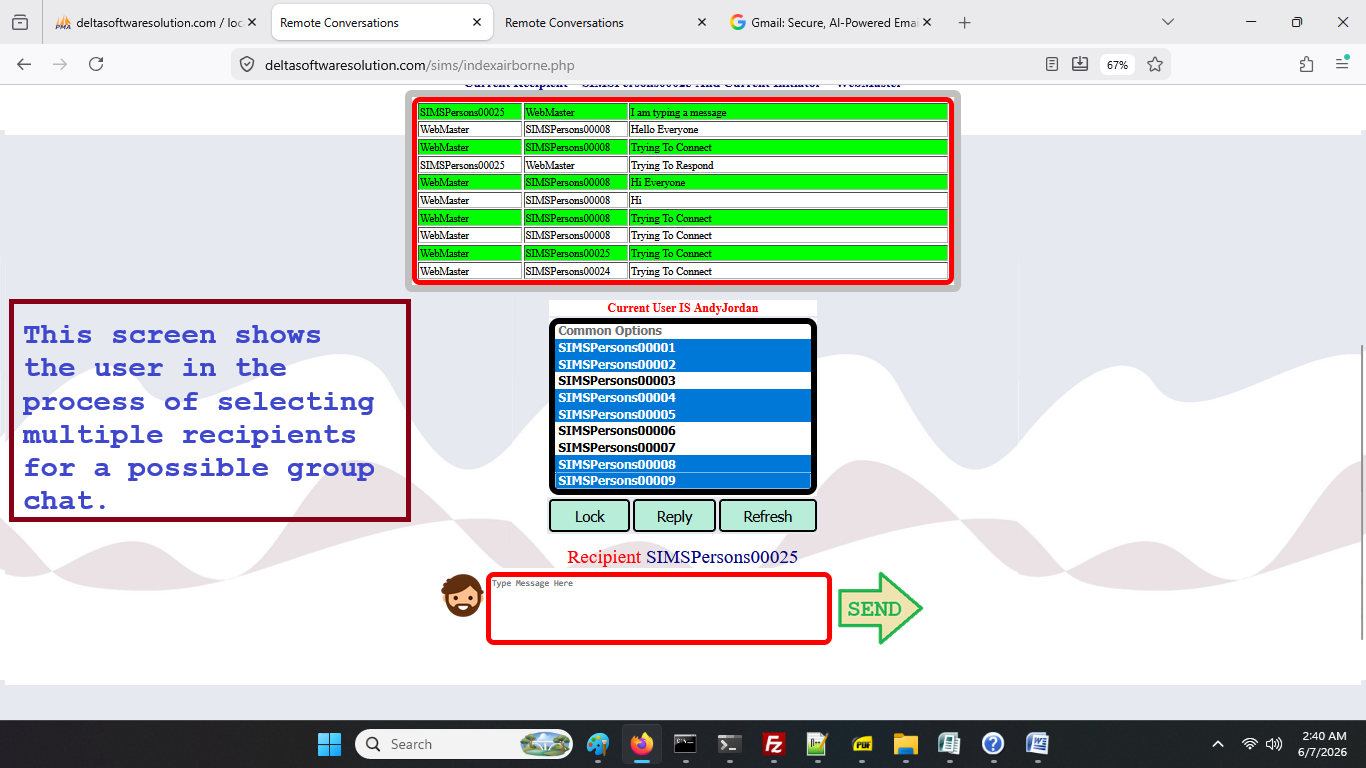
The screen shows the actual selection of users/members in the creation of a group chat. The initiator, who has the sole responsibility of selecting the members for the group, will use the mouse of arrow keys on the keyboard or just tapping on the touchscreen to add to the list before final processing.
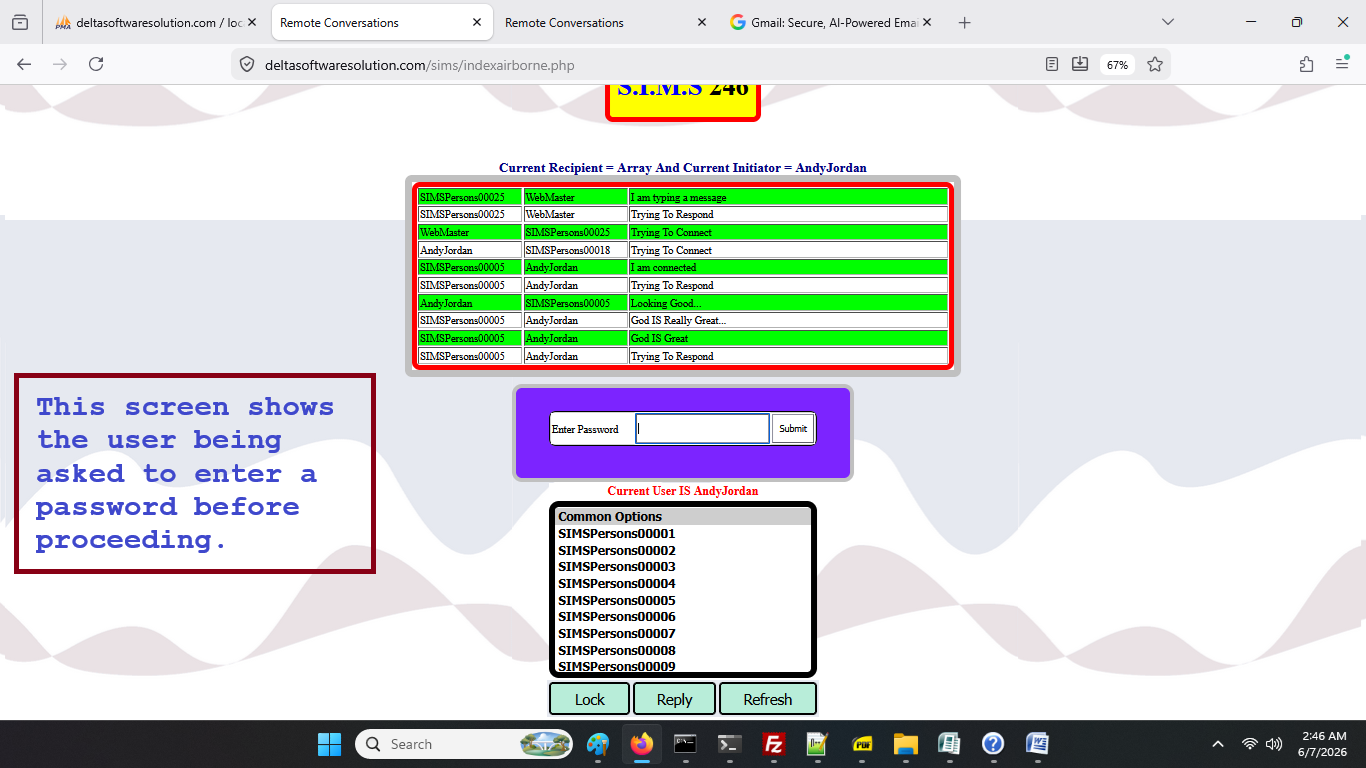
After the user has finished selecting the users that will be part of the group, he/she will have to enter their password only to complete the process. When the user enters the password correctly, the system will process the request and when the screen is refreshed, each user that was chosen to be part of the group chat will each appear on a separate line.
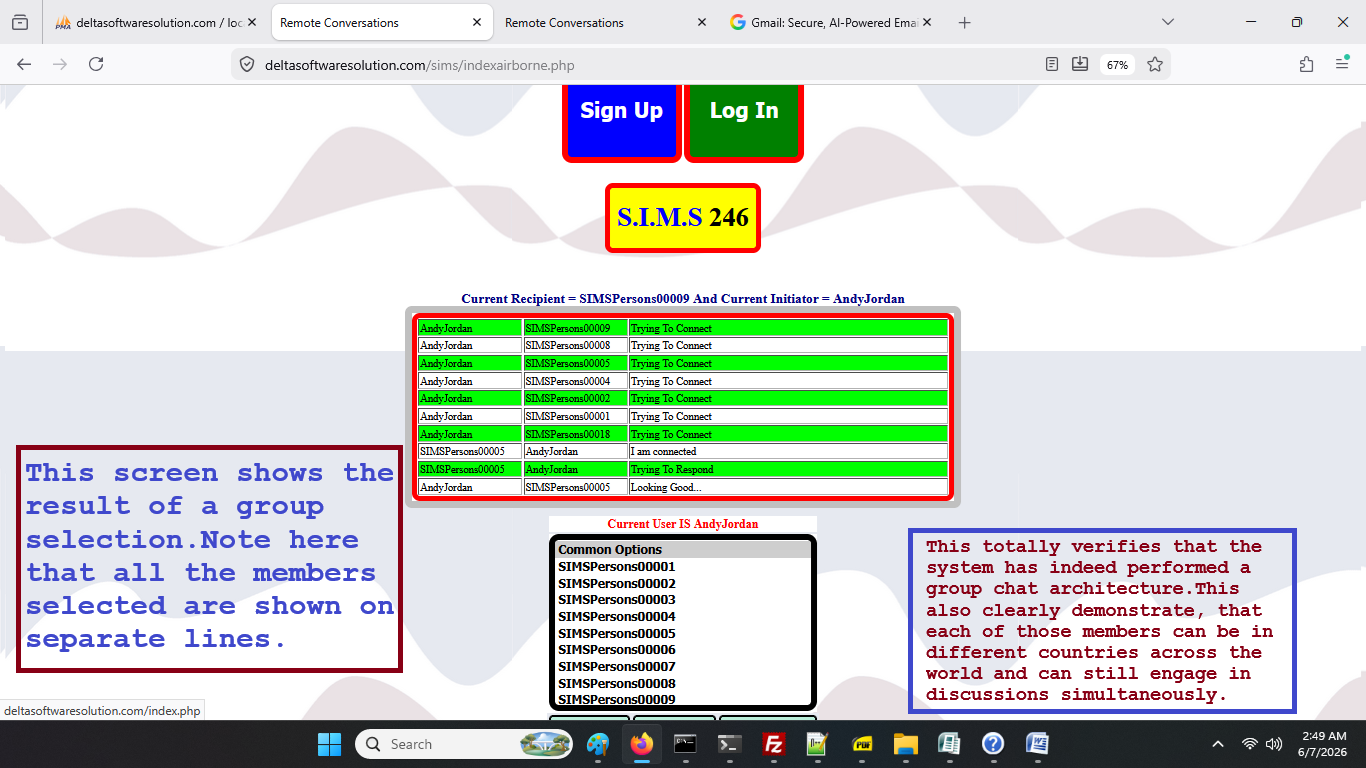
The above are the results of that group request.
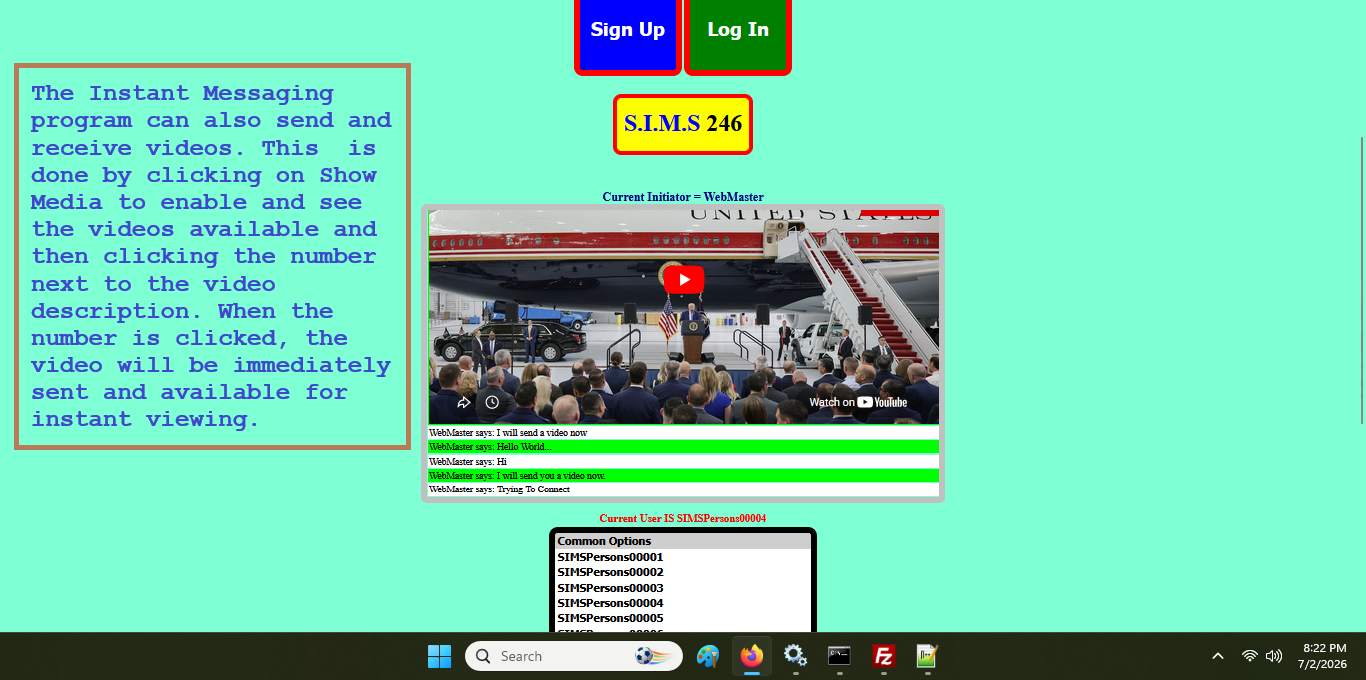
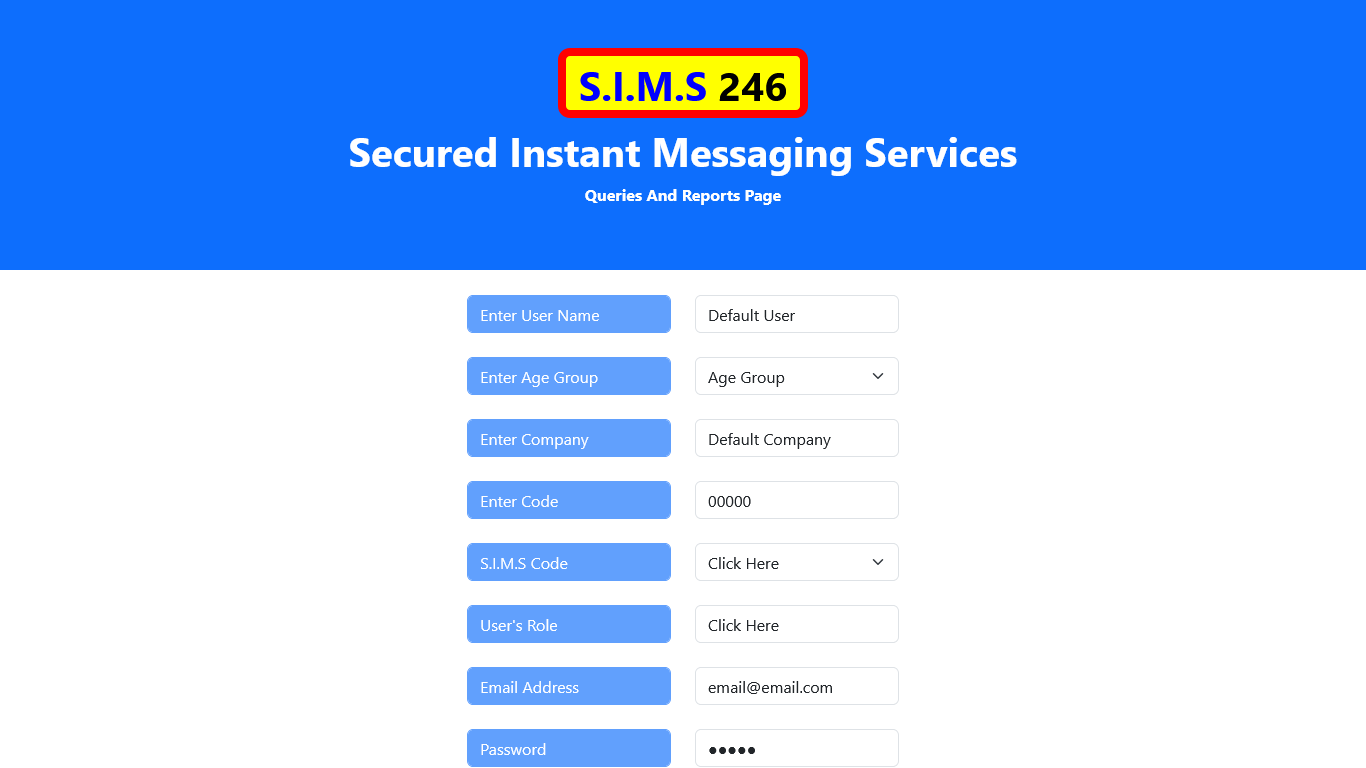 Results Shown After The User Accesses The Reports And Queries Page.
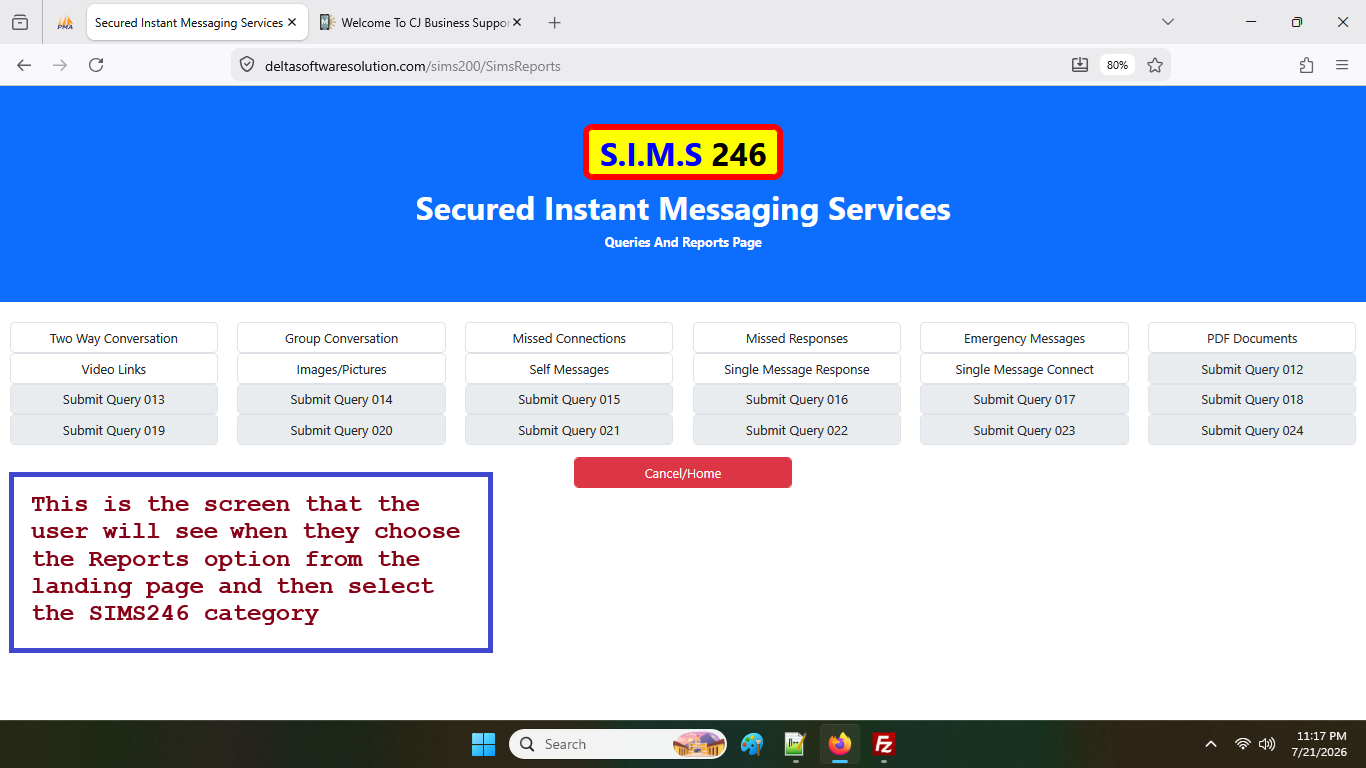
When the user accesses this page, he/she is presented with a range of choices. The user can click on the appropriate button which will fire immediately upon being clicked. If the user makes the incorrect choice, they can always go back and select accordingly. The options on the page that carries a grey/gray background are those that currently does not have any associated information and are therefore disabled. All information retrieved in the given queries is the exact and un-edited information that was gathered when the conversation had initially taken place, and as such can be used as a reference point or as a verification of facts.
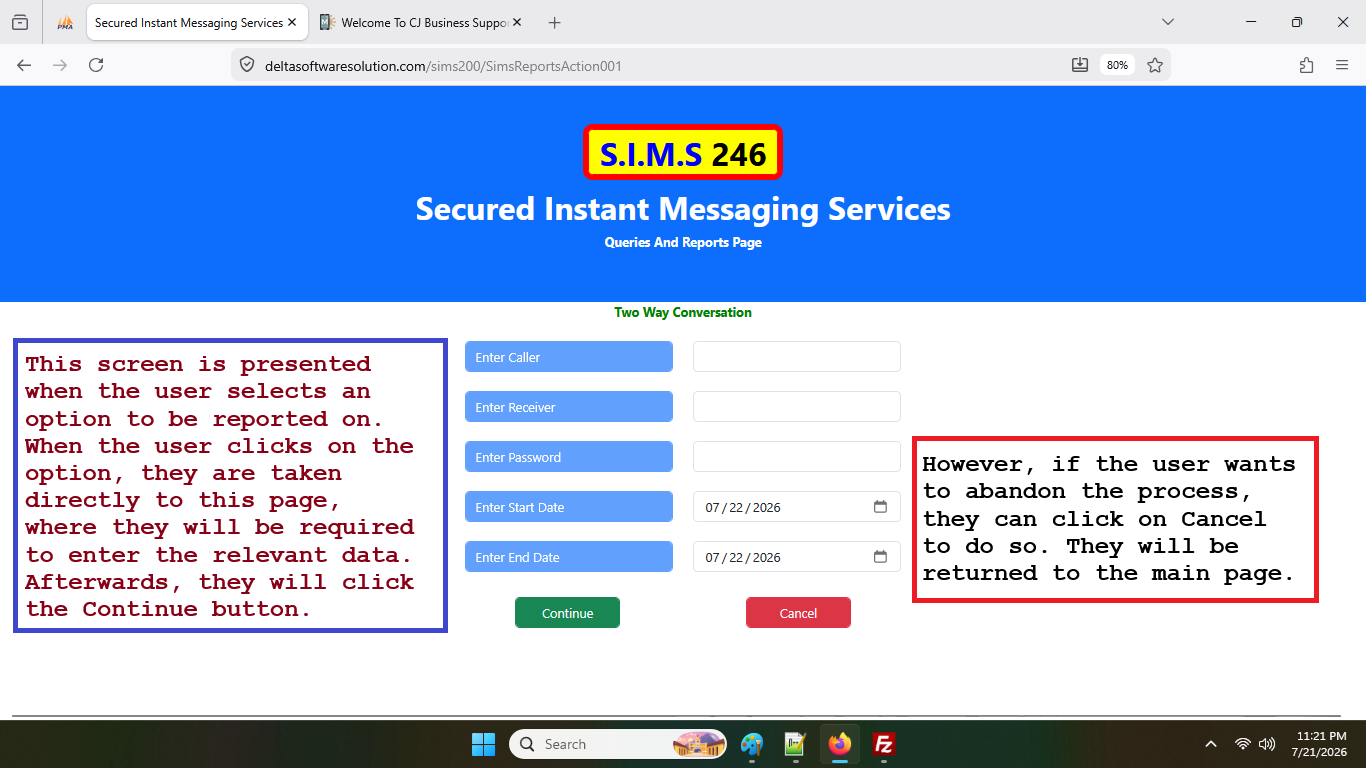
Atfer the user has selected the required category, they will be presented with this page, which will be prompting the user to enter information representing the caller, receiver, passwords and the date range for which the query will be dependant.All the fields mentioned in this particular section will be required to be filled.
The password required to be entered, must be the password of the user requesting the information. Let me explain here.When the converstion is first created in the chat, it requires an Initiator and a Recipient. Both persons have different roles in the conversation.
If the person at this query/reporting time was not the initiator of the conversation, they will have to enter their name as the [Receiver] and enter the username of the person who started the conversation as the [Caller]. However, they will enter their own password to verify the conversation. They will also be required to enter a date range for which the report ought to be based upon.
After entering the required parameters, they will be required to click the continue button to proceed. If however, they wish to abandon the task, they can click [Cancel/Home].
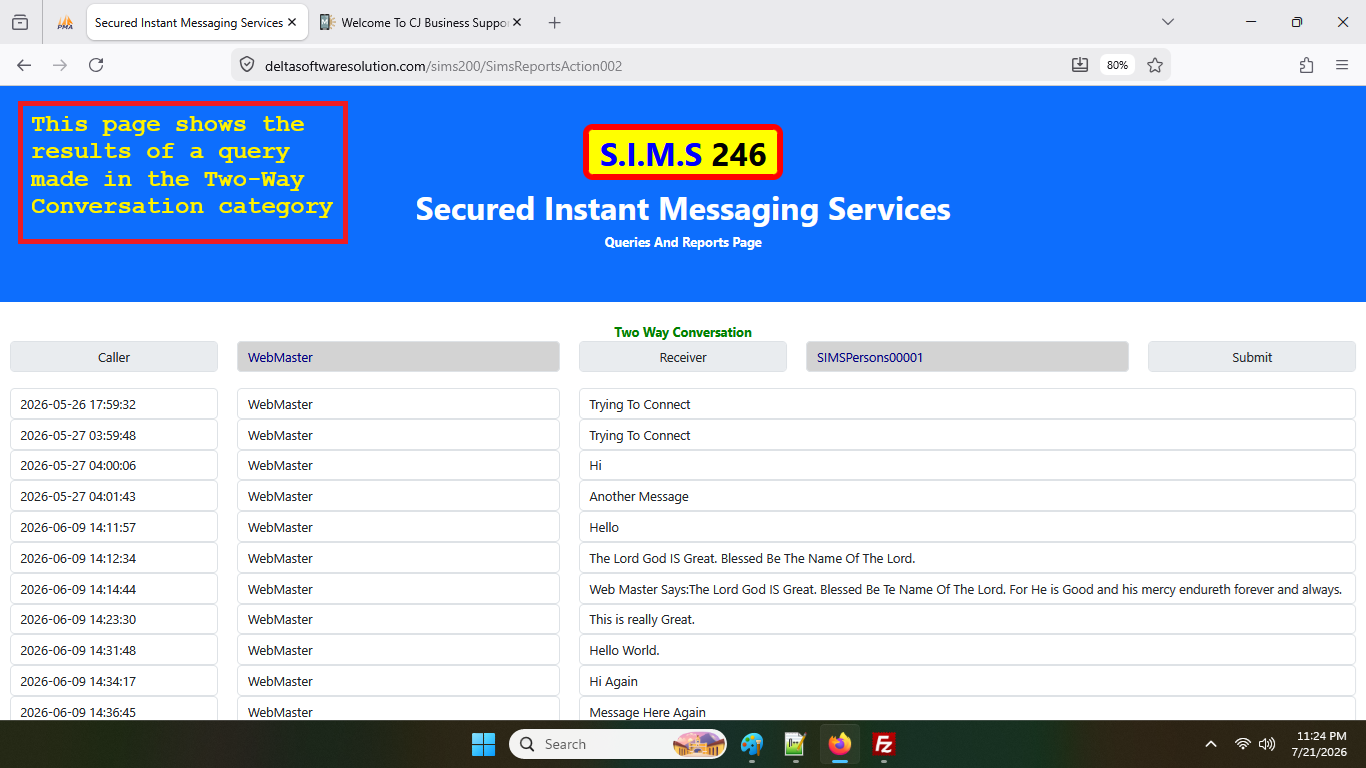
The above image shows the results of a completed request for a Two-Way conversation query. Take note of the tabular layout showing the date, the person associated with the particular message and the message itself on a row by row basis. The information is ordered by date and time in the ascending order, therefore you can actually chronicle a conversation verbatum.
This feature is really useful, in the event that a user/users wish to have access to previous conversations to inform a current event or future events.
We have finally reached the end of this document. This document fully represents the spirit and the goal of this project. That is, to provide the subscribers with a system, that would be of immense value to them in the area of world-wide connection and communication, and helpful information to do so.
I hope that you enjoyed reading this information, as much as I have enjoyed preparing it for you. This will not be the last iteration, as I always seek to improve or enhance whatever I get involved in. So keep engaged and look out for new updates as they come on stream. Once again, it has been my pleasure.
With Kind Regards,
Yours Truly,
Cecil Anderson Jordan,
Computer Programmer/Site Developer